
Docs
Clocker user guide
Clocker helps you log your work in Jira and see, at a glance, how close you are to your daily goal. Everything you log is a regular Jira worklog: it appears on the issue, in Jira's time tracking field and in every Jira report.
Getting started
Jira admins: install Clocker from the Atlassian Marketplace. The first time you open Settings › Apps › Clocker, the Get started page walks you through three steps:
- Set your team's daily goal, working days and holidays.
- Optionally, make Clocker the time tracking provider, so it replaces Jira's own "Log work" button and Work log tab (see For Jira admins).
- Tell your team where to find it.
Everyone else: there is nothing to set up. Clocker appears in three places:
- Log time and the Time today panel on every issue.
- My time in Jira's Apps menu: your overview, timesheet, worklogs, reports and settings.
- The Clocker – my time goals gadget for Jira dashboards.
Clocker uses your goal from the moment it is installed. To change it, see Settings.
Logging time
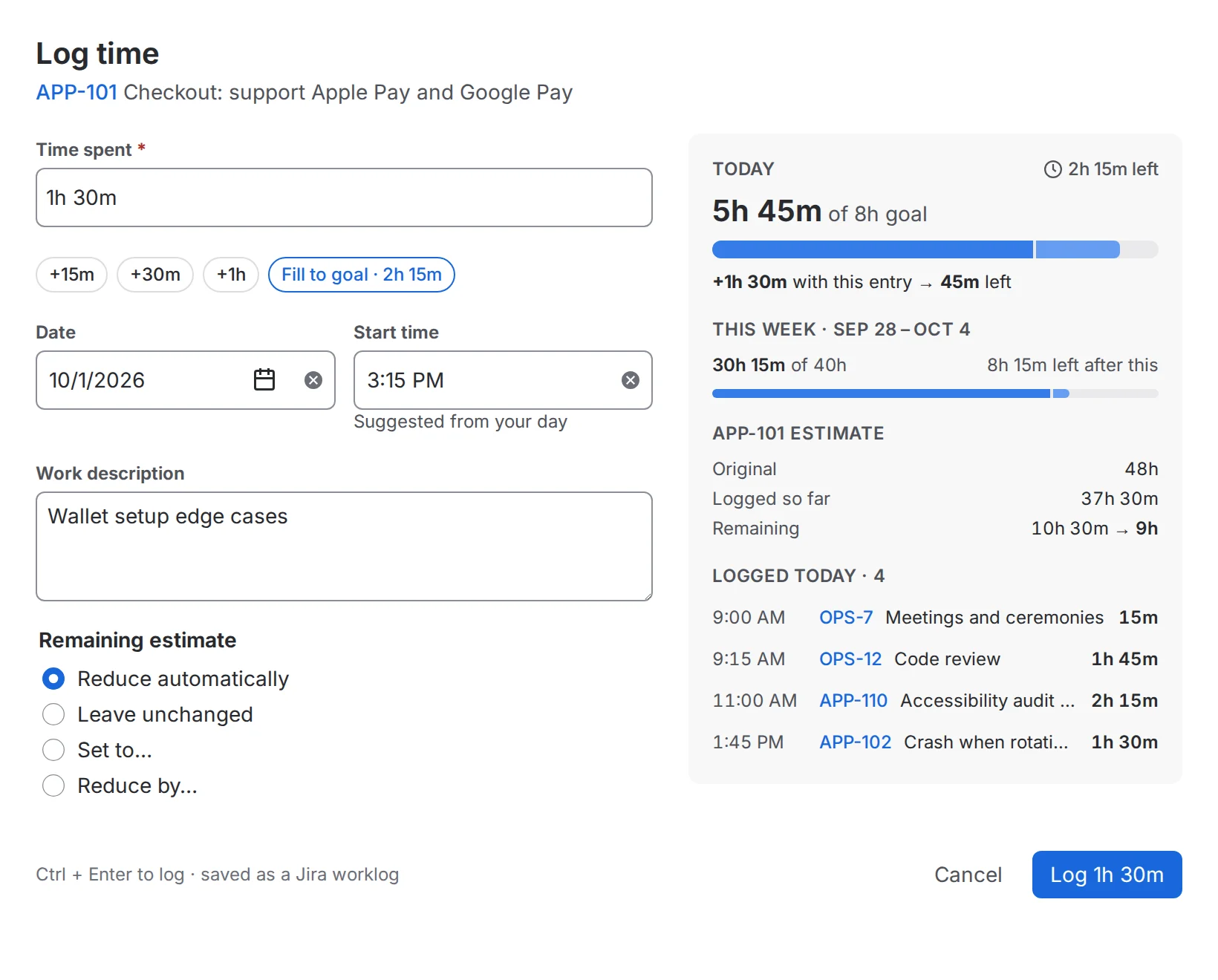
Open an issue and choose Log time. It is in the issue's ••• menu, in the Time today panel, or replaces Jira's own "Log work" button if your admin made Clocker the time tracking provider. You can also log time from anywhere in My time, where you pick the issue first.
-
Time spent: type it the way you would in Jira:
2h,1h 30m,1.5h,90m,1:30or1d. Clocker shows how it read your input. The chips add 15 minutes, 30 minutes or an hour, and Fill to goal fills in exactly the time still missing from the day. - Date and start time: the date defaults to today. The start time is suggested from your day (right after your last worklog). You can pick another one, or set a default in Settings.
- Work description: what you worked on. Your admin may make it required.
- Remaining estimate: reduce it automatically (Jira's default), leave it, set a new value, or reduce it by a specific amount.
The panel on the right updates as you type:
- Today: what you already logged, this entry (light blue) and what is left after it.
- This week: progress against your weekly goal.
- Estimate: the issue's remaining estimate before and after this entry, with a warning when the entry exceeds it.
- Heads-up: overlapping worklogs, future dates, or more than 24 hours in a day.
Press Ctrl + Enter (⌘ + Enter on a Mac) to log without reaching for the mouse.
On the issue
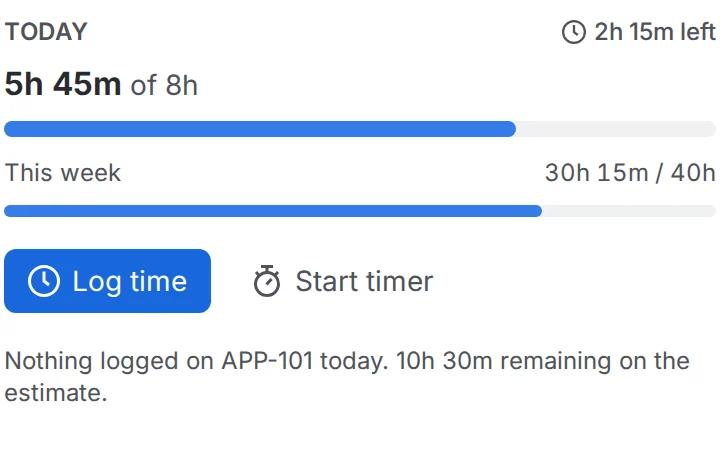
The Time today panel in the issue's sidebar shows what you logged today and this week against your goals, and what you logged on this issue. Log time opens the dialog for this issue. When your last working day came up short, the panel says so and offers to log the missing time.
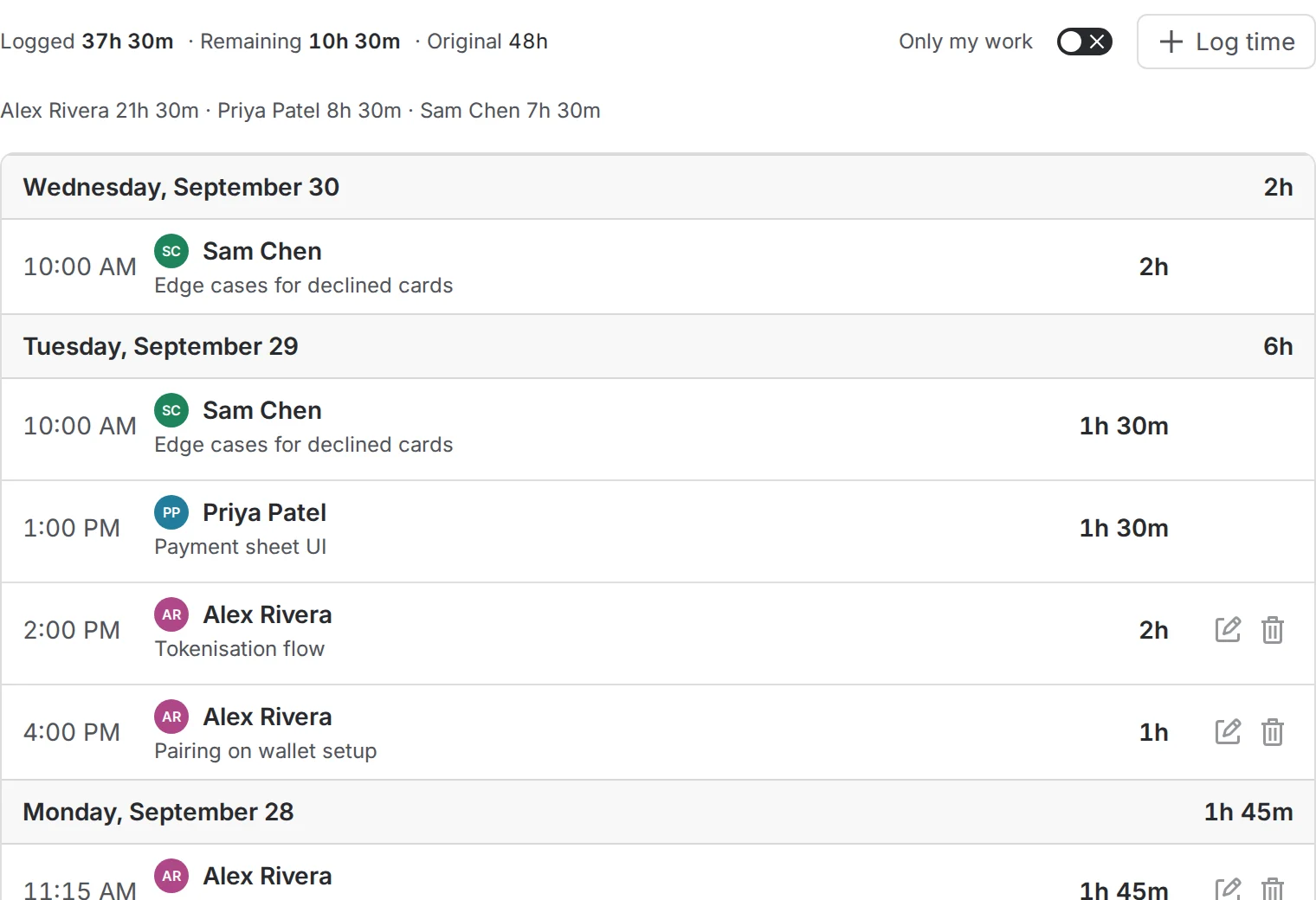
The Work log tab, next to Comments and History, lists every worklog on the issue by day, with the logged, remaining and original estimate at the top. Turn on Only my work to see just yours. You can edit or delete your own worklogs right there.
My time
Find My time in Jira's Apps menu.
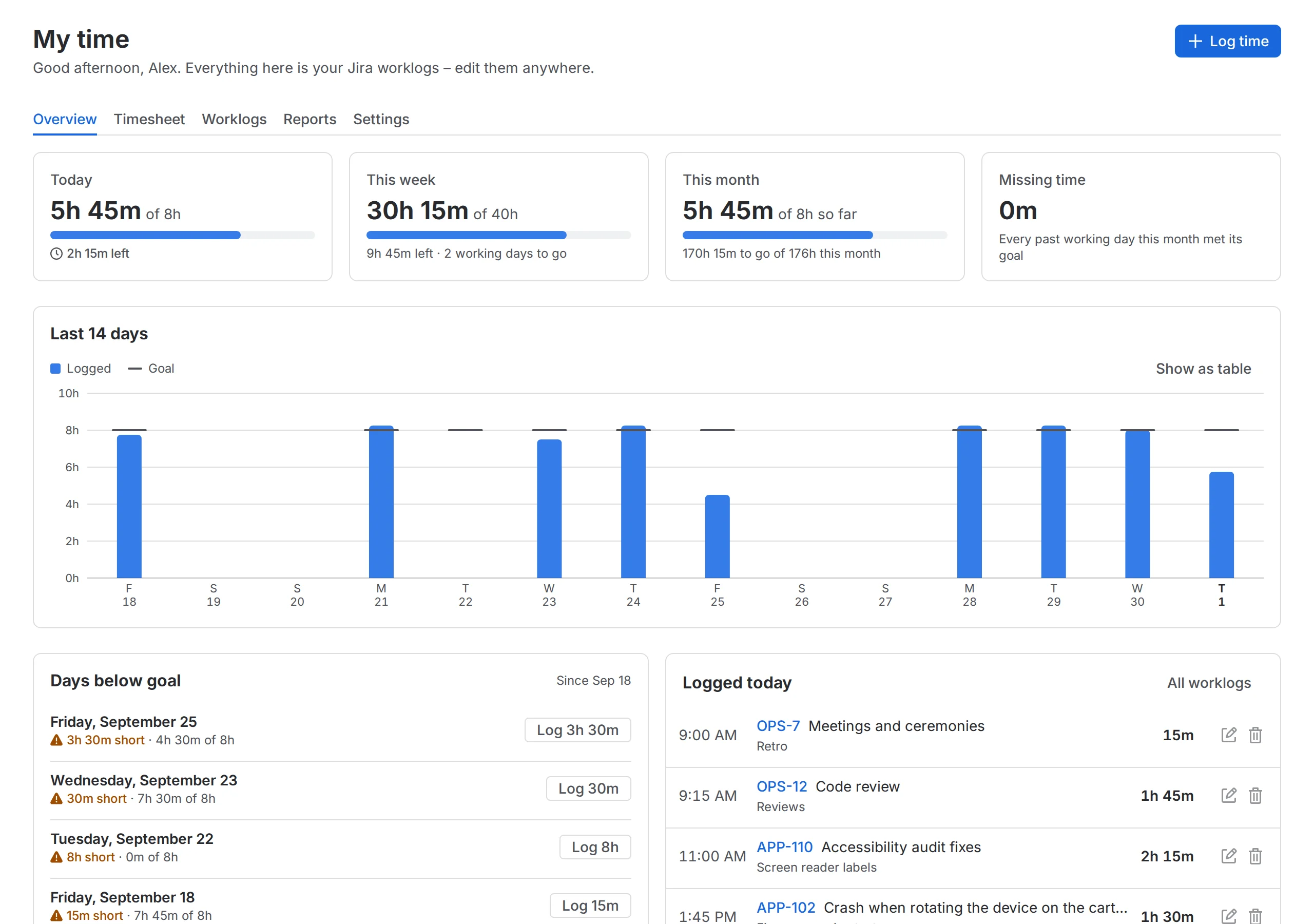
- Overview: today, this week, this month and missing time, a 14-day chart against your goal, the days that fell short (with a one-click button to log the missing time), and today's worklogs.
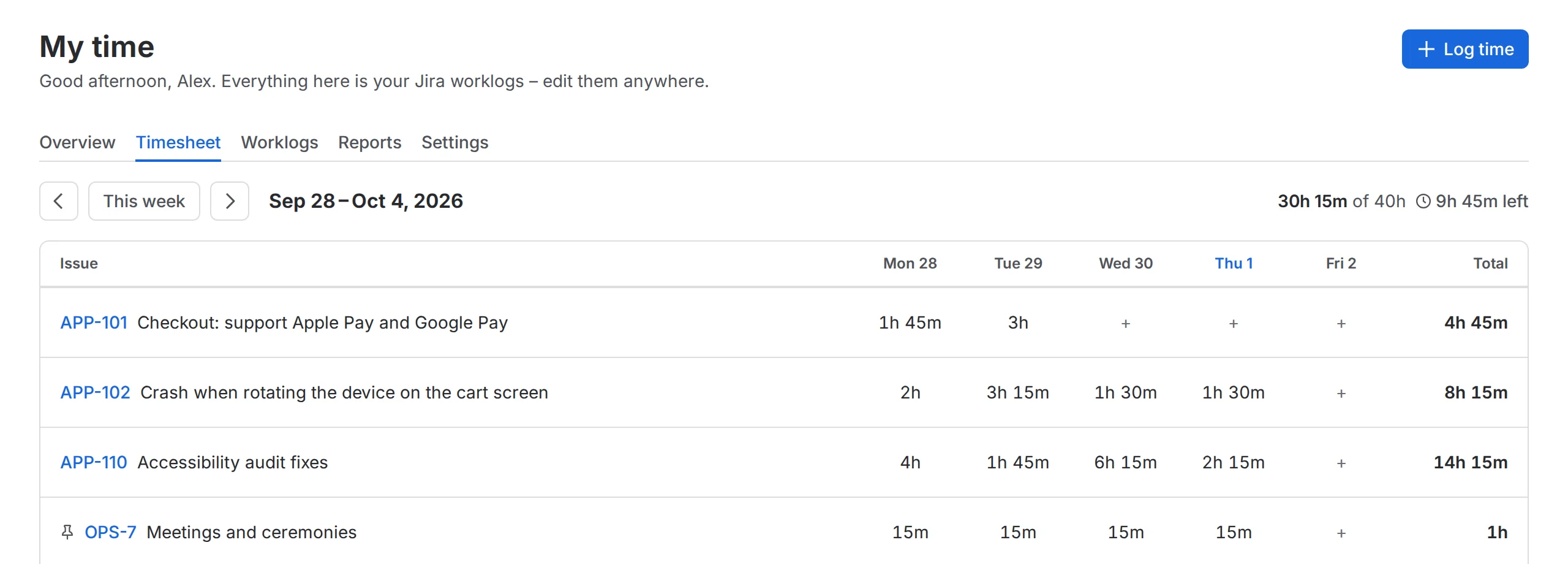
- Timesheet: your week as issues × days. Click a filled cell to see, edit or delete its worklogs, or an empty one to log time on that issue and day. Pinned issues always appear. Use Add issue for anything else.
- Worklogs: choose a period (today, this week, last month, a custom range up to 62 days), filter by project or text, and group by day or issue. Edit or delete any entry inline, or Export CSV for invoices or spreadsheets.
- Reports: a calendar of the month with a goal meter for every day, days on goal, missing time, time above goal, and where your time went by project and issue. Select a day to see its worklogs and log what's missing.
- Settings: see below.
Settings
Open Settings in My time or Clocker time goals in your Jira profile menu.
- Daily goal: use the site default or set your own goal and working days, with optional different goals for specific weekdays (for example a shorter Friday). Your admin can turn personal goals off.
- Days off: vacation, sick leave or any day without a goal. These days never count as "missing time".
-
Week starts on, Show durations as (
1h 30m,1.5hor1:30), default start time, and weekends in the timesheet. - Pinned issues: recurring work such as meetings or support. They are offered first when you log time and always appear in your timesheet.
Your settings are private: nobody else, including admins, sees your goals or days off.
Dashboard gadget
Add Clocker – my time goals to any Jira dashboard to see today and this week against your goals, with buttons to log time or open My time. In the gadget's configuration you can hide the week or the timer.
Timer
If you prefer a stopwatch, the Time today panel has one. Press Start timer; it keeps running when you close the issue or switch browsers, because it is saved for your account.
- Pause / Resume for breaks.
- Stop & log opens Log time prefilled with the measured time (rounded the way your admin chose), the start time and your note.
- Discard throws the time away.
You can have one timer at a time. If it is running on another issue, the panel offers to stop and log it first.
Languages
Clocker speaks every language Jira Cloud offers: Chinese (Simplified and Traditional), Czech, Danish, Dutch, English (US and UK), Estonian, Finnish, French, German, Hungarian, Icelandic, Italian, Japanese, Korean, Norwegian, Polish, Portuguese (Brazil and Portugal), Romanian, Russian, Slovak, Spanish, Swedish and Turkish.
It uses the language from your Atlassian account settings, the same one Jira uses, and
formats dates and numbers to match. Durations keep Jira's notation (1h 30m) in every language, because that is what Jira's duration fields accept.
For Jira admins
Open Settings › Apps › Clocker (the first visit shows Get started).
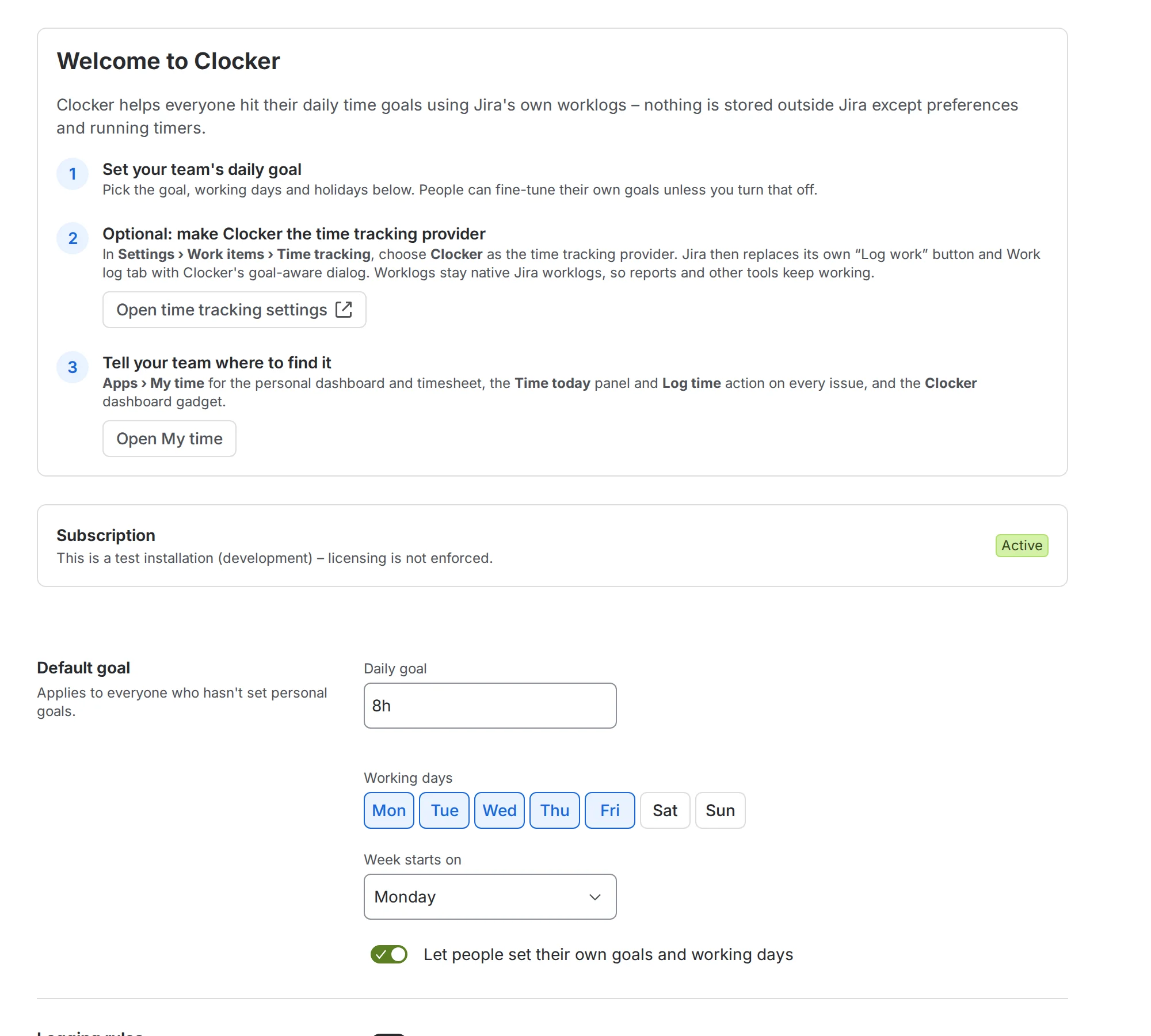
- Default goal: the daily goal and working days for everyone, the first day of the week, and whether people may set their own goals.
- Logging rules: require a work description, the default remaining-estimate behaviour, and how timers are rounded (to the minute, up, or to the nearest 5, 6, 10, 15, 30 or 60 minutes).
- Holidays: company-wide days without a goal.
- Time tracking provider: under Settings › Work items › Time tracking, choose Clocker to replace Jira's "Log work" button and Work log tab with Clocker's. Switch back any time. Worklogs are native Jira worklogs either way.
- Subscription: shows whether the Marketplace license is active. If it lapses, people keep all their worklogs, and Clocker's screens ask them to contact an admin.
Troubleshooting
"Time tracking is turned off in Jira". Clocker uses Jira's built-in time tracking. A Jira admin can turn it on under Settings › Work items › Time tracking.
"You can't log work on this issue". Your Jira permissions don't allow logging work in that project. Ask a project admin for the "Work on issues" permission.
"Some worklogs are missing". Jira took too long to return all your worklogs for the period, so totals may be low. Pick a shorter period or try again in a moment.
"A timer is already running". You can have one timer at a time. Stop and log, or discard, the other one first.
"Clocker needs an active subscription". The Marketplace license has lapsed. Your worklogs are safe in Jira; a Jira admin can renew Clocker under Apps › Manage apps.
FAQ
Where is my data? Worklogs are stored by Jira. Clocker stores only your preferences (goals, days off, pinned issues) and your running timer, in Atlassian's Forge storage.
Will Clocker change existing worklogs? Only when you edit or delete them yourself.
Does it work with other time tracking apps? Yes. Anything that reads Jira worklogs sees the time you log with Clocker.
Which time zone does Clocker use? The time zone in your Jira profile.
Can I log time on someone else's behalf? No. Clocker always acts as you, with your Jira permissions.
What happens if we uninstall? Every worklog stays in Jira. Only Clocker's preferences and running timers are removed.